Extract text with OCR
Recognize English text in an image, extract text from scanned pages or add a searchable text layer to a PDF in your browser.
2 tools
Choose between recognised text and a searchable PDF
Reviewed . How we check our guidance
OCR estimates characters from page pixels. It is useful for a clear scan with no selectable text, but a confident-looking result can still misread a name, decimal point or negative sign. The available recognition language is English; proofread against the original before reuse.
Choose between nearby tools
- One picture and an editable text draft
-
Image OCR recognises a supported image and exports text. It does not turn the picture into an editable visual document. The result preview is read-only; download or copy it and make corrections in your own editor.
- A PDF with digital text and some scans
-
Extract PDF text starts with existing text and can use optional English OCR when a page has too little useful native text. It produces a separate text file. A mixed page with enough native text may not trigger OCR for an image on that same page.
- Keep the page appearance and add search
-
Searchable PDF OCR adds an invisible text layer to selected pages while retaining the visible PDF. It does not replace an existing text layer, and its embedded recognised words are limited to supported basic-Latin characters. Running it on already searchable pages can create duplicate text.
Make an image-only English scan searchable
First check whether a useful text layer already exists. Try selecting and searching a known phrase in your PDF viewer. If it already works, avoid unnecessary OCR.
- Inspect the visible source
Confirm page count and orientation, then use a full viewer to inspect the smallest text. Obtain a clearer scan when glare, blur or missing edges obscure the original.
- Recognise the selected pages
For the one-page practice scan, choose all pages and minimum confidence 30. The threshold filters engine estimates; it does not mean 30% or 70% verified accuracy.
- Review the added text separately
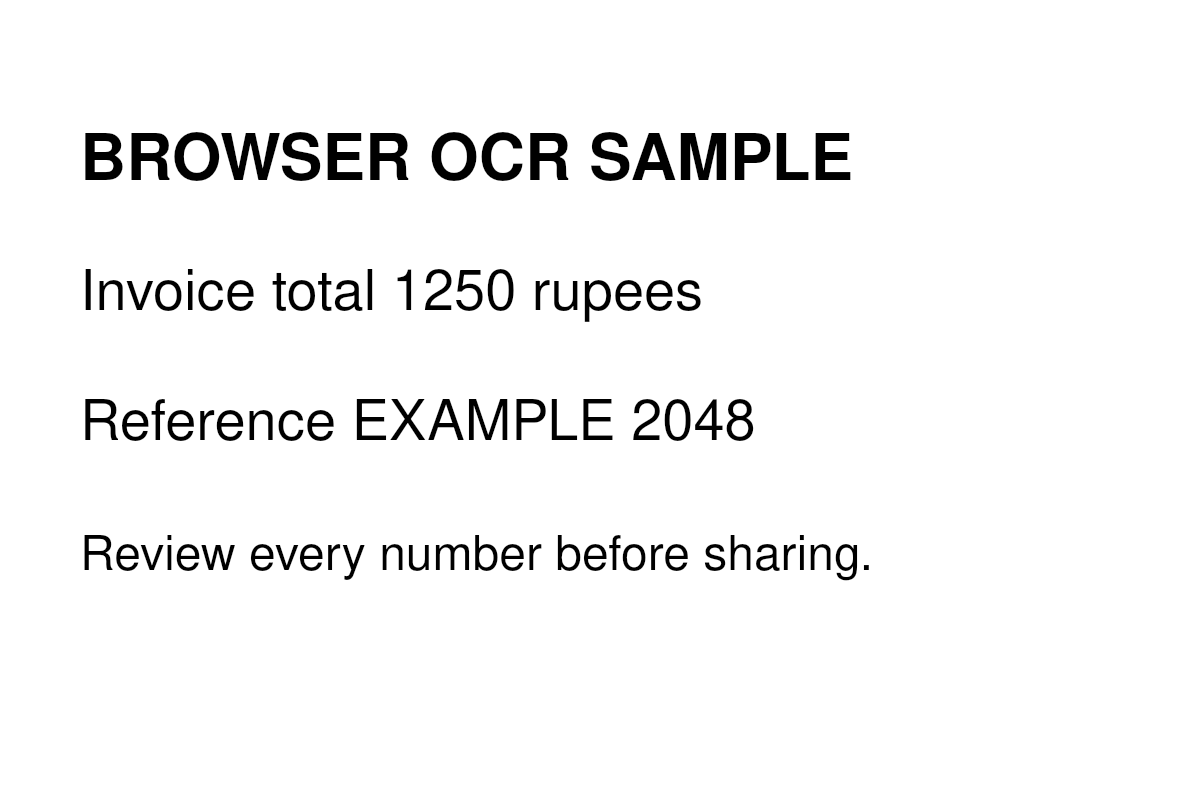
Download the searchable copy, select it in Extract PDF text with OCR off, and compare its recovered wording with the visible scan. Check 1250 and 2048 in the practice file character by character.
The PDF OCR tool retains all source pages, but only selected pages receive the new layer. Track your processed ranges, keep the original scan and download each result before moving to another tool.
Check the output before using it
- Search for a known phrase from each processed page. Check the first and last line as well as any numbers, names, units and punctuation that matter.
- Select or extract text and check reading order. A PDF can look unchanged while its invisible layer joins columns or associates a value with the wrong label.
- Read the processed-page count and any limit notice. Average engine confidence is a recognition estimate, not a measured accuracy score for your document.
Limits and recovery
- The first run is slow or recognition assets fail to load
- OCR runs locally after its runtime and English language assets load from the site. Retry a failed download while online; an uncached first run is not guaranteed to work offline. Process a smaller selection when memory or page limits are reached.
- Words are missing, duplicated or consistently wrong
- Inspect the source language and clarity, existing text layers and confidence filter. A lower threshold may retain more wrong words as well as correct ones. For handwriting or unsupported scripts, choose a suitable OCR workflow rather than relying on this English model.
Samples and supporting references
- Download the clear English OCR picture
Four known lines include 1250 and 2048 for checking recognised numbers.
- Download the image-only practice PDF
The same synthetic text in a one-page PDF provides a source without an existing text layer.
- Compare the checked searchable-PDF output
See the actual settings and sample checks; they do not establish accuracy on other scans.